
Guided tour
CRAFT can walk you through the basics with short, in-app guided tours — they dim the screen, point at the button you need, and step you through the essentials. New accounts get the Studio tour automatically; you can start, resume, or replay any tour whenever you like.
The "Get started" panel
Your home dashboard has a Get started panel, just below your channels. It lists every tour available to you with its current status and a button to run it.
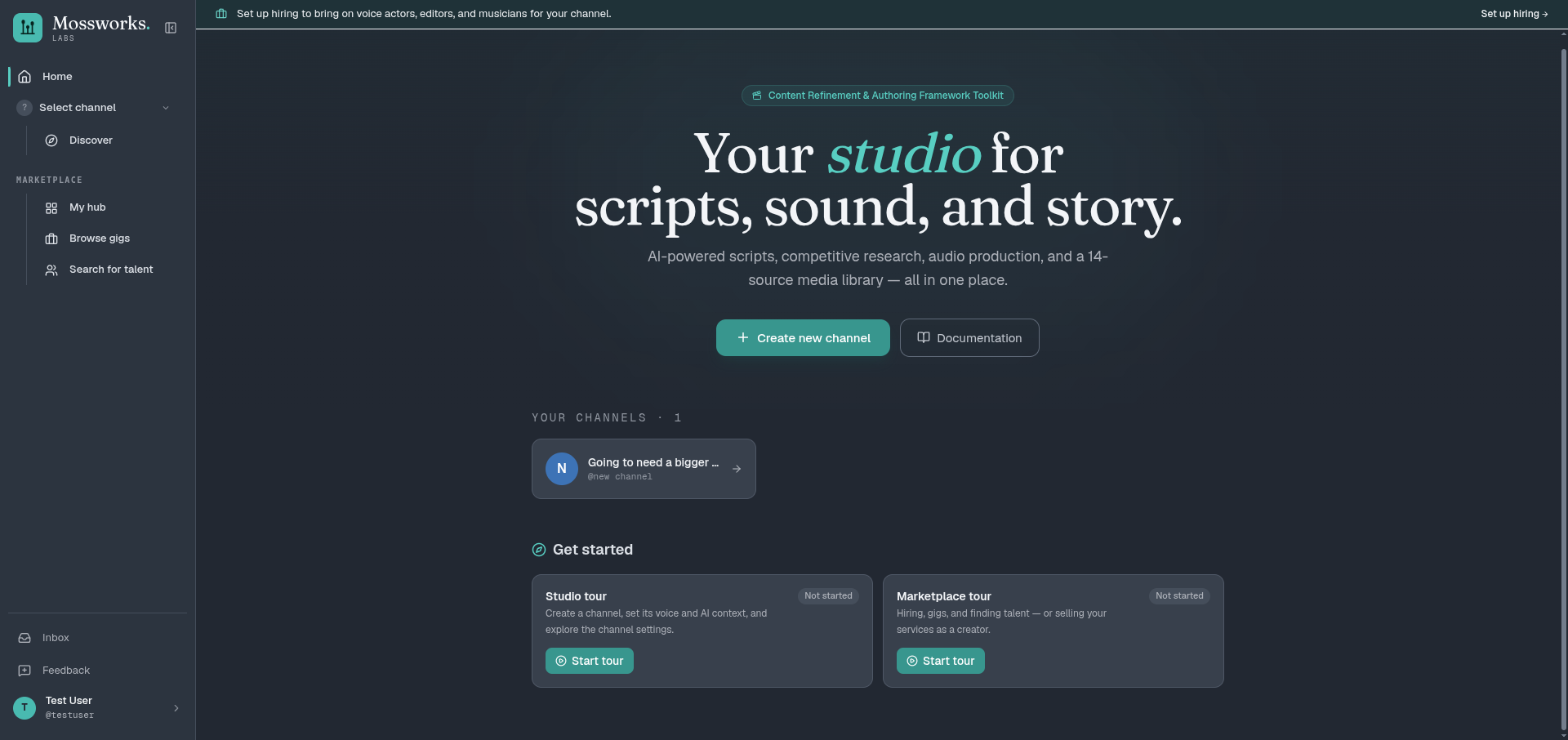
Each tour shows one of four states:
- Not started — you haven't run it yet. Press Start tour.
- In progress — you began it (or a tour parked you mid-setup). Press Resume to pick up where you left off, or Restart to begin again.
- Completed — you finished it. Press Restart to replay it.
- Skipped — you ended it early. Resume continues from your last step.
Tour progress is remembered per device in your browser, so finishing a tour on your laptop won't hide it on another machine.
Studio tour
The Studio tour is the fastest way to get your first channel producing. It walks you through:
- Creating a channel — everything in CRAFT lives inside a channel, so this is step one. The tour waits while you actually create one.
- Setting the voice — choosing a text-to-speech service and default narration voice. See Settings → Voice.
- Writing the AI context — the per-channel AI Context (CLAUDE.md) and character description that steer every script and idea the AI generates.
- The rest of the settings tabs — Channel & YouTube, Brand, Publish, AI, Keys, and Usage. These are all covered in depth on the Settings page.
For new accounts with no channels yet, this tour starts automatically the first time you land on the home dashboard.
Marketplace tour
The Marketplace tour adapts to how you're using the marketplace — see Buyer & Seller for the two roles:
- Hiring (buyers) — your hiring hub, browsing gigs, searching for talent, and setting up hiring so you can post gigs and pay creators.
- Selling (sellers) — your desk, finishing seller onboarding, and finding work.
Because you can't hire or get hired until your setup is finished, the tour ends by pointing you at the onboarding checklist if there's anything left to do — and stays marked In progress until you're ready to transact.
Replaying a tour
You can reopen the Get started panel anytime from the Onboarding entry in your avatar menu (bottom of the sidebar). From there, Restart replays a tour from the beginning, or Resume continues an in-progress one.
Skipping a tour
Every step has a Skip tour button, and pressing Esc pauses the tour (it parks in the corner so you can Resume or End tour). Nothing you do during a tour is permanent to the tour itself — you can always restart it later from the Get started panel.